Discord 消息工具箱

为每条消息添加工具栏,支持文字复制、媒体下载与社交链接转换,并提供强化转发面板、侧栏频道快捷方式(虫洞)与表情收藏管理器。

您需要先安装一款用户脚本管理器扩展,例如 Tampermonkey 篡改猴Greasemonkey 油猴子Violentmonkey 暴力猴,才能安装此脚本。

您需要先安装一款用户脚本管理器扩展,例如 Tampermonkey 篡改猴,才能安装此脚本。

您需要先安装一款用户脚本管理器扩展,例如 Tampermonkey 篡改猴Violentmonkey 暴力猴,才能安装此脚本。

您需要先安装一款用户脚本管理器扩展,例如 Tampermonkey 篡改猴Userscripts ,才能安装此脚本。

您需要先安装一款用户脚本管理器扩展,例如 Tampermonkey 篡改猴,才能安装此脚本。

您需要先安装一款用户脚本管理器扩展后才能安装此脚本。

(我已经安装了用户脚本管理器,让我安装!)

您需要先安装一款用户样式管理器扩展,比如 Stylus,才能安装此样式。

您需要先安装一款用户样式管理器扩展,比如 Stylus,才能安装此样式。

您需要先安装一款用户样式管理器扩展,比如 Stylus,才能安装此样式。

您需要先安装一款用户样式管理器扩展后才能安装此样式。

您需要先安装一款用户样式管理器扩展后才能安装此样式。

您需要先安装一款用户样式管理器扩展后才能安装此样式。

(我已经安装了用户样式管理器,让我安装!)

作者
Star_tanuki07
日安装量
0
总安装量
44
评分
0 0 0
版本
2.0.0
创建于
2026-03-08
更新于
2026-05-02
大小
733.9 KB
许可证
MIT
适用于

📮 Message Toolkit for Discord Web Client

Version License Greasy Fork 📍 Author GitHub | Script Repository

A userscript that adds a message utility toolbar, an enhanced forwarding panel, cross-channel shortcuts, an expression collection manager, and header utility controls to the Discord web client.
Hide image Image
Show image 👈🏻 Image

💡 Overview The core of this script is the Message Utility Toolbar — a per-message toolbar for copying text, downloading media, and converting social media URLs. All other modules are supplementary additions. These bonus features may be less stable or less suited to every workflow. Each module can be individually enabled or disabled at any time via the ⚙️ Module Settings panel accessible from the toolbar.


🎛 UI Entry Points

Icon Feature Name Where It Appears
Message Utility Toolbar Top-right corner of any message on hover (or click, if configured)
📋 Forwarding Manager Inside Discord's native Forward modal — adds pinned channels, history, and fuzzy search
😀 Expression Manager Inside the emoji/GIF picker panel — manages saved collections
🌀 Wormhole Panel Rendered persistently in the Discord sidebar as a shortcut launcher
🖱️ Anti-Hijack Toggle Injected into the Discord top bar next to the Inbox icon
📄 Conceal Name Toggle Injected into the Discord top bar next to the Inbox icon
🔗 Webhook Manager Accessible from the message toolbar menu — send content to Discord webhooks

🚀 Core Features

🛠️ Message Utility Toolbar

Appears when you hover over (or click on) any Discord message.

  • Text Copying: Copy the full message text, or insert it directly into the chat input box
    • Long-press the copy button (0.5s) to insert text into chat
    • Shift+Click to copy and insert simultaneously
  • Link Utilities: Extract and copy tracker-free URLs, copy all links line-by-line, or format a link as a Markdown hyperlink
  • Hidden Format: Wrap message content in spoiler tags for redaction
  • Media Downloader: Download all images or videos attached to a message in one click
    • Right-click any media item to copy its source URL directly to clipboard
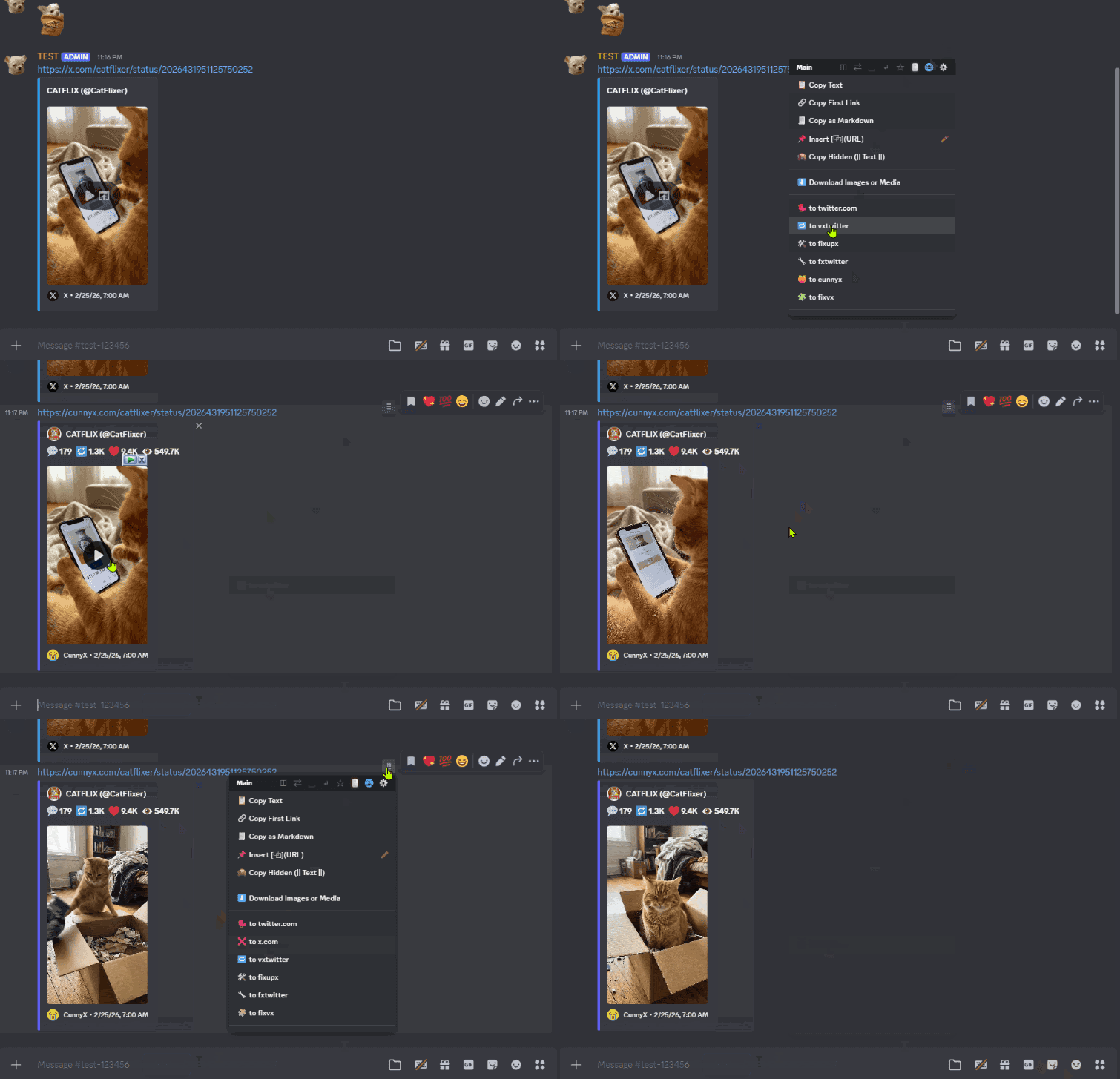
  • URL Converter: Convert social media links into embed-friendly proxy formats to restore Discord's link previews
    • Twitter / X → vxtwitter, fixupx, fxtwitter, or cunnyx
    • Instagram → kkinstagram
    • Bilibili → FX Bilibili / VX Bilibili
    • Pixiv → phixiv / pixiv.cat
    • Use Convert All (N) to batch-process every link of the same type in a message

⚠️ Third-Party URL Conversion Services Notice This feature relies on external open-source proxy services (vxtwitter, kkinstagram, etc.) to embed social media content. These third-party services are not operated or endorsed by this script's author. Before using URL conversion:

  • Verify that you trust the target proxy service
  • Understand that the third party may log, inspect, or modify content passing through their service
  • Check the uptime and reliability of the service — if the proxy domain goes offline, converted links will break
  • Be aware that Discord users who click converted links will visit the third-party proxy URL, not the original social media site

Use URL conversion responsibly and only with links you trust. If you have concerns about any proxy service, do not use that conversion option.

📋 Forwarding Manager

Accessible when opening Discord's native Forward panel.

  • Pinned Channels: Save frequently used channels or users to a persistent quick-access bar at the top
  • Fuzzy Search: Click the ⏎ icon to search using partial keywords or abbreviations, bypassing Discord's exact-match search
  • History Log: Automatically tracks recently forwarded destinations for quick re-selection

🌀 Wormhole Shortcuts

A persistent panel rendered in the Discord sidebar.

  • Channel Shortcuts: Paste any Discord channel URL into the Wormhole panel (click +) to create one-click navigation shortcuts
  • Organization: Right-click any Wormhole to rename, delete, set a custom icon, assign to a named group folder, or mark as VIP (auto-pinned to top)
  • Focus Mode: Toggle the panel to icon-only compact view using the button at the top-right of the Wormhole panel
  • Send Message Overlay: Right-click a Wormhole → Send Message Here to open a send overlay without navigating away
    • Supports pasting images directly via Ctrl+V
    • Mode A (Navigate): Switches to the target channel, injects the text, then returns
    • Mode B (Direct API): Sends via Discord API without page transition — requires opt-in token interception
  • History Badges: Purple badges display recently visited channels; click to return instantly

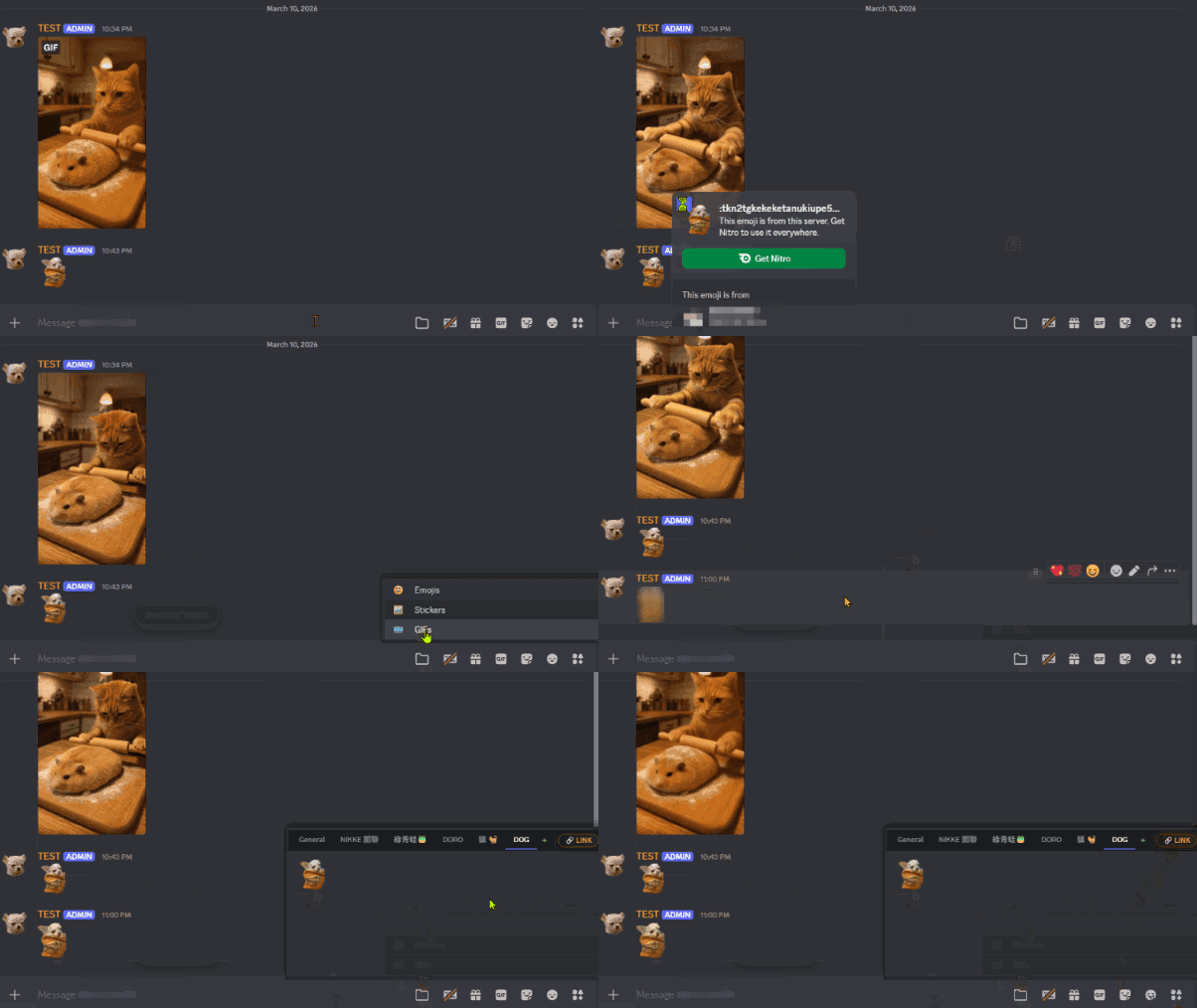
😀 Expression Manager

Integrated into Discord's emoji/GIF picker.

  • Collections: Organize emojis, stickers, and GIFs into custom named tabs
  • Target Mode: Activate to save any GIF or sticker visible on screen with a single click

🖱️ Anti-Hijack — Right-Click Context Menu Restore

Two toggle buttons injected into the Discord top bar next to the Inbox icon. Both buttons support short-press and long-press.

By default, Discord intercepts all right-click events and replaces the browser's native context menu with its own. Anti-Hijack blocks this interception, restoring access to the browser's standard right-click menu on all page elements.

How to use:

  • Short-press the 🖱️ button to toggle on/off for the current session (button turns green when active)
  • Long-press (0.5s) to toggle and save as the default for all future sessions
  • Hover to see multilingual status tooltip and the current saved default

This feature is off by default and must be manually enabled.

📄 Conceal Name — Upload Filename Masking

When uploading a file to Discord, the original filename is visible to all recipients. Conceal Name replaces the filename during upload with a randomly generated string while preserving the original file extension.

The file content is not altered — only the name visible to the recipient and stored on Discord's servers is replaced.

How to use:

  • Short-press the 📄 button to toggle on/off for the current session (button turns green when active)
  • Long-press (0.5s) to toggle and save as the default for all future sessions
  • Hover to see multilingual status tooltip and the current saved default

This feature is off by default and must be manually enabled.

🔗 Webhook Manager

Send messages to Discord webhooks directly from the message toolbar.

  • Add Webhooks: Click the 🔗 icon in the message toolbar to open the Webhook Manager panel
  • Save Multiple Webhooks: Store unlimited webhook URLs with custom names for quick access
  • Test Webhooks: Verify that a webhook is valid and accessible before using it
  • Send Message Content: Send the current message text directly to any saved webhook with one click
  • Send URLs: Extract and send all links from the current message to a webhook
  • Automatic Channel Detection: The script automatically detects and stores the source guild and channel for each webhook, enabling one-click navigation back to the source channel after sending

All webhook URLs and metadata are stored locally in your browser. The script only makes requests to Discord's official API endpoints.


🧪 Experimental Features & Known Limitations

  • Wormhole Mode A: Sending via Mode A causes a brief visible page transition to the target channel before returning
  • Third-Party URL Proxies: URL conversion features depend on external open-source services (vxtwitter, kkinstagram, fxtwitter, phixiv, etc.). These services are independent from this script and not endorsed by its author. Availability depends on the uptime of those domains. Converted links direct users to third-party proxy services, which may inspect or log traffic. Do not use these conversions if you do not trust the respective proxy services. If a proxy service goes offline, previously converted links will break.
  • Discord UI Compatibility: This script injects UI elements into Discord's web client. Discord updates may temporarily break injected features until the script is updated

⚙️ Settings & Module Control

⚙️ Module Toggle Panel

The script's six modules can be enabled or disabled individually without reinstalling. Access the panel by opening the ⠿ Message Utility Toolbar on any message and clicking the ⚙️ icon.

Module Default State
⠿ Message Utility Toolbar On
📋 Forwarding Manager On
😀 Expression Manager On
📌 Header Mods (Anti-Hijack + Conceal Name) On
🌀 Wormhole Shortcuts On
🔗 Webhook Manager On

The Message Utility Toolbar is the primary feature. The remaining five modules are bonus additions that may not work reliably in all environments and depend on Discord's internal UI structure. Any problematic module can be disabled here without affecting the others.

⚙️ Additional Configuration Options

  • Toolbar Behavior: Switch the Message Utility toolbar trigger between Hover and Click modes
  • Menu Layout: Toggle between Flat and Grouped menu styles
  • Custom String Panel: Save reusable text snippets — Click to copy, long-press to insert into chat box, Shift+Click to delete
  • Settings Backup: Export all script settings (pinned channels, Wormholes, collections) as JSON string via Export Settings, and restore on any device via Import Settings
  • Language Switching: Switch script UI language using the 🌐 icon — Supported: English, Traditional Chinese, Simplified Chinese, Japanese, Korean

🔐 Security & Privacy Notice

⚠️ This script includes an opt-in feature that accesses your Discord Authorization Token.

Data Type Purpose Storage Transmitted To
Discord Auth Token Authenticate direct API requests for Wormhole Mode B Volatile memory (RAM) only — cleared on page close or refresh discord.com official API endpoints only

This script does not collect, share, or transmit your credentials to any external server.

💡 This feature is opt-in only — no action means no risk. Token access is triggered exclusively when you manually enable Wormhole Mode B (Direct API) by long-pressing the + button for 1 second and confirming the consent prompt. All other features — including Mode A sending, message copying, URL conversion, media downloading, forwarding, expression management, Anti-Hijack, and Conceal Name — operate entirely without any credential access. If you enable Mode B, a consent dialog will appear before anything is intercepted. Reviewing the source code beforehand is recommended.

⚠️ Terms of Service Notice: Using a personal user token to make automated API requests is classified as "self-botting" under Discord's Terms of Service. This carries risk of account flagging or suspension. Users who enable Mode B do so at their own discretion and accept full responsibility for any consequences.


  • This userscript is primarily maintained on Greasy Fork.
  • Built with AI assistance by a hobbyist developer. Bug fixes and updates may not be immediate.
  • Feedback is welcome. Responses may be assisted by translation tools if needed.
